Installing the TAB plugin takes about five minutes on any Paper, Spigot or Purpur server. This guide walks through choosing the right jar from the official GitHub release, uploading it, restarting safely and checking that the tablist, nametags and config files loaded the way they should.
Before you install TAB
Check your server software and version
TAB runs on Paper, Spigot, Purpur and Folia, as well as on proxies and modded platforms. The current 6.2.0 release added Minecraft 26.3 support for Bukkit-based servers and dropped 1.19.1 to 1.19.3, so if you are still on one of those versions, update the server first or use an older TAB build. Open your console and run version to see exactly what you are running.
Pick the correct jar file
Most servers need the universal file, TAB.v6.2.0.jar, which bundles every platform module. The release page also lists a separate Paper build for 1.20.5 to 1.21.4. Use that only if you run one of those versions on Paper and the universal jar gives you trouble. Always download from the official GitHub release and compare the SHA-256 checksum.
Installing the plugin step by step
Upload the jar to /plugins
Stop the server, then upload the jar into the plugins folder using your host's file manager, SFTP or a simple copy on a local machine. Remove any older TAB jar at the same time, because two copies with the same plugin name will refuse to load.
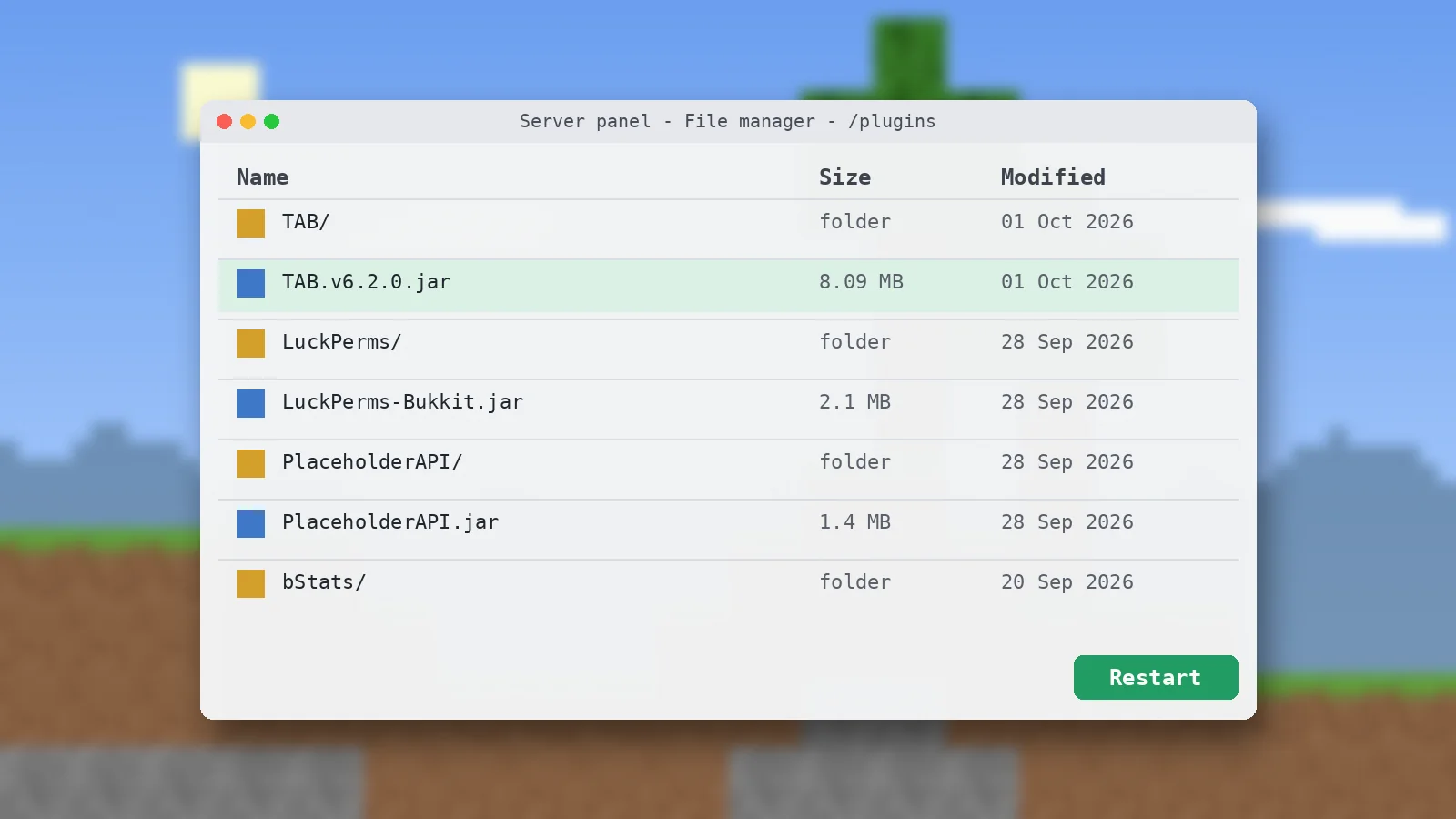
Restart and read the console
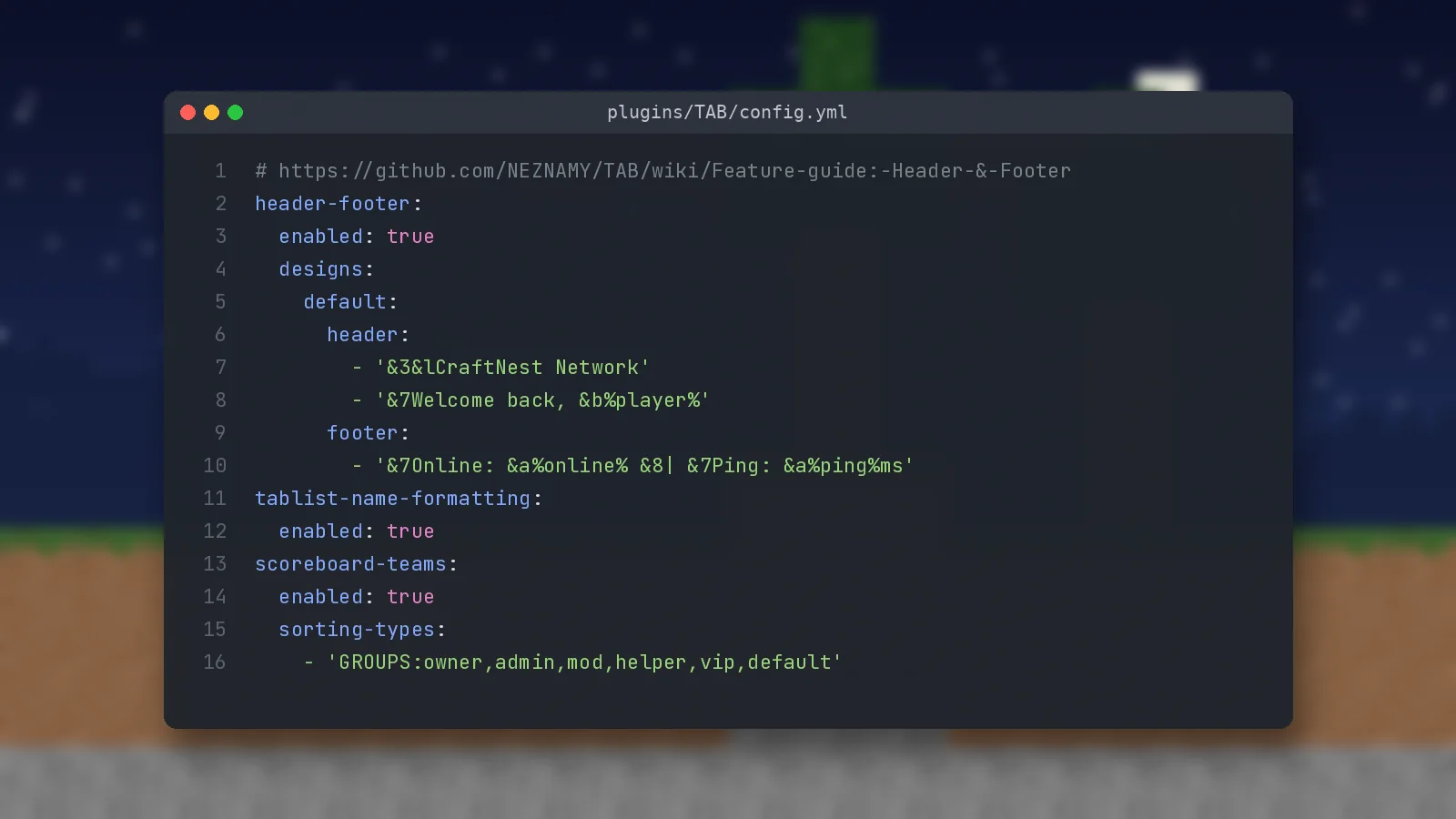
Start the server again rather than using a hot-reload plugin for the first install. Watch the console for lines that say TAB is loading and enabling. If LuckPerms or PlaceholderAPI are installed, TAB reports that it hooked into them. A new plugins/TAB folder appears with config.yml, groups.yml, users.yml, animations.yml and messages.yml.
Confirming that everything works
Join the server and press Tab
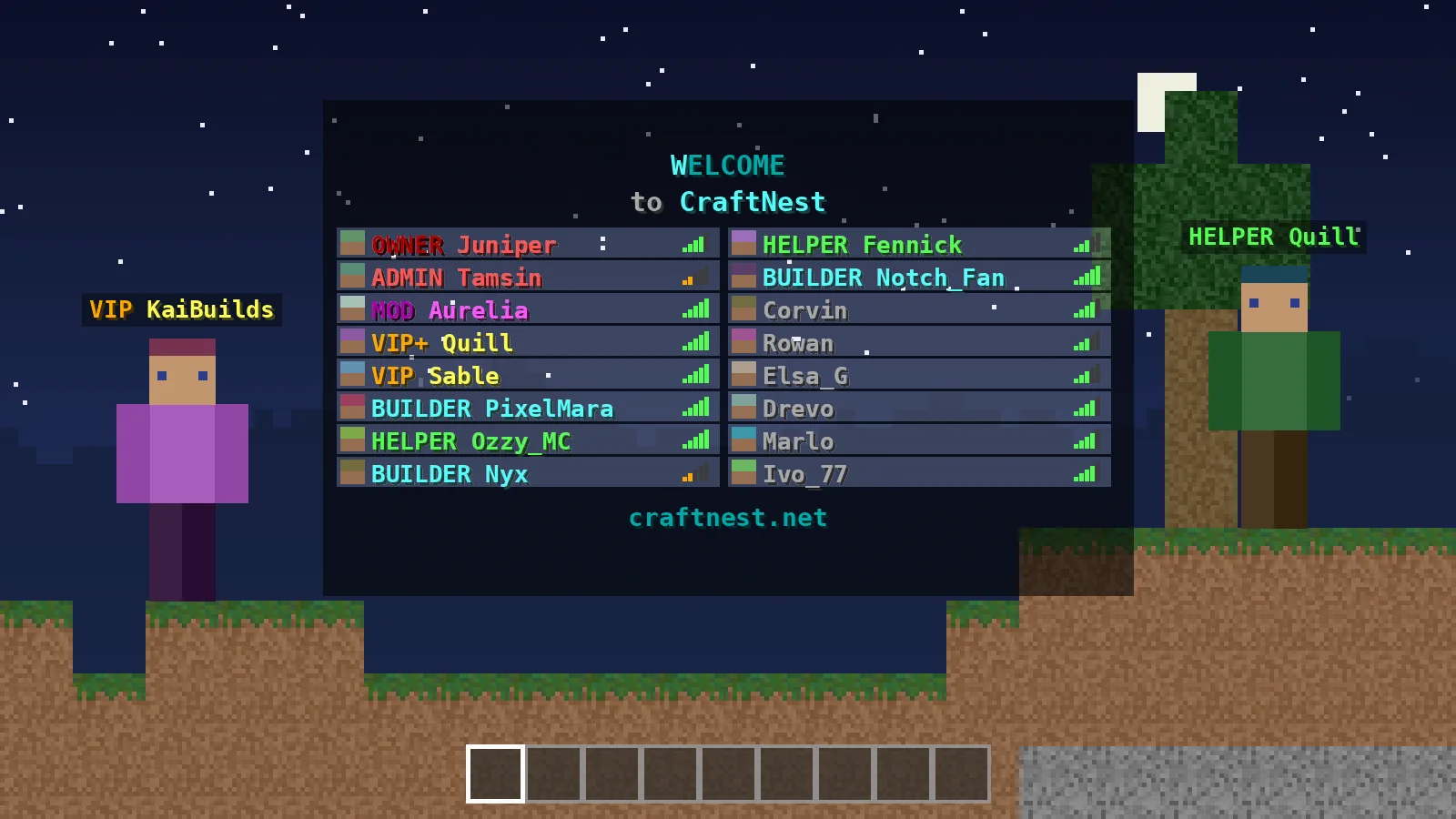
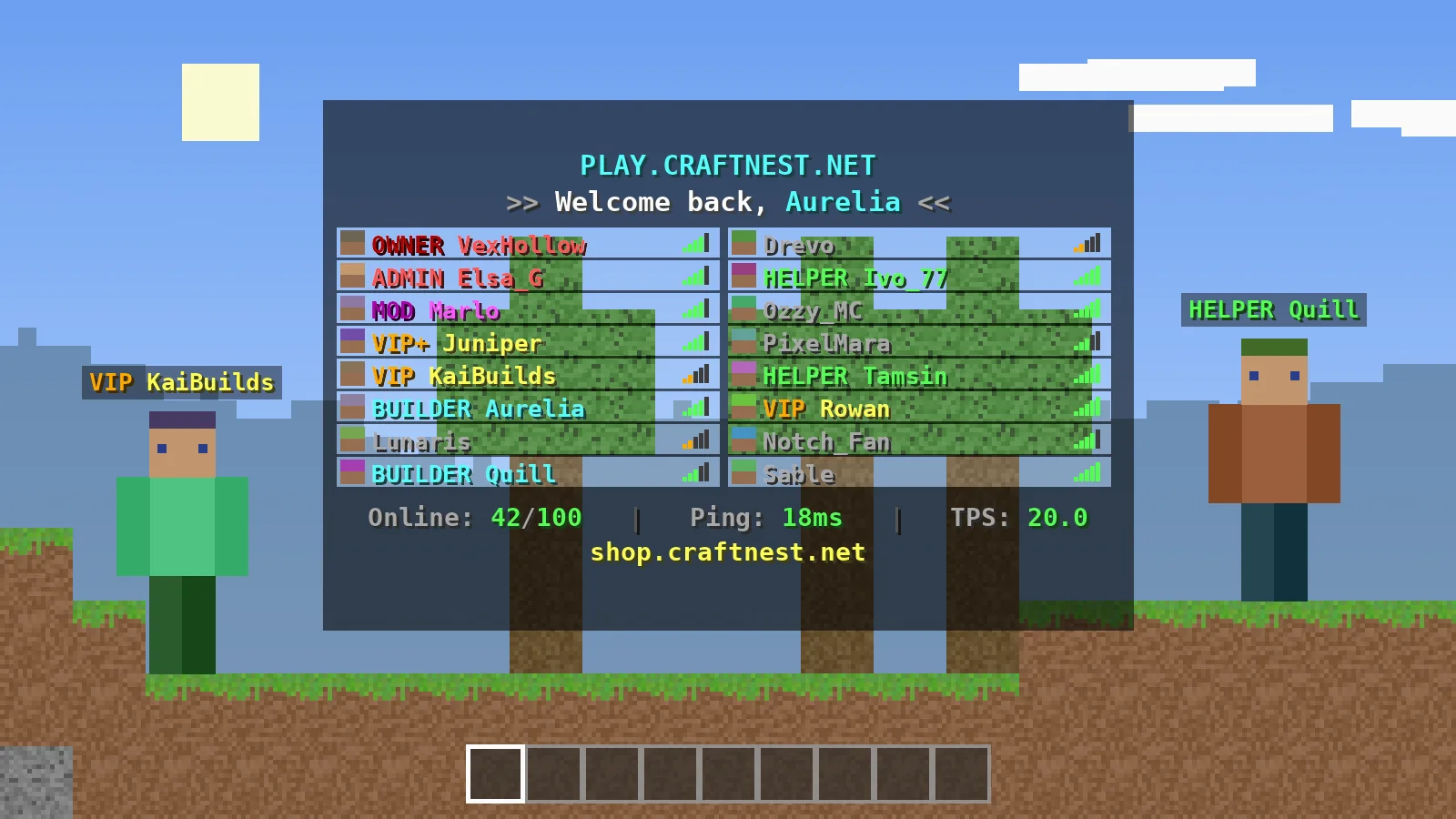
Log in and hold your player list key. You should see the default header and footer, coloured names and a ping value. If the list looks completely vanilla, check that header-footer and tablist-name-formatting are enabled in config.yml.
Run the first commands
Give yourself the tab.admin permission or OP, then try these:
/tab reloadreloads every config file after you edit it./tab cpushows how much processing time each feature uses./tab parse <player> %ping%tests a placeholder for a specific player.
Recommended companion plugins
LuckPerms for groups and prefixes
TAB reads each player's primary group from your permission plugin and applies matching settings from groups.yml. LuckPerms is the most common pairing, and the default config already uses %luckperms-prefix%. Our LuckPerms prefix guide covers the setup in detail.
PlaceholderAPI for extra data
TAB has many built-in placeholders such as %online%, %ping% and %tps%. PlaceholderAPI unlocks thousands more from other plugins, like economy balances or faction names, which you can drop straight into headers, footers and scoreboards.
Updating TAB later
Replace the jar, keep your configs
Updating is as simple as stopping the server, swapping the old jar for the new one and starting again. TAB converts older configuration files to the latest format automatically, so you do not need to delete your settings.
Why downgrading is a bad idea
An older build cannot understand a config format that was created by a newer one. If you must roll back, restore a backup of the whole plugins/TAB folder that was taken before the update.
Quick answers
Do players need to install anything?
No. TAB is server-side only, so players join with a normal client and see the formatted tablist straight away.
Can I use /reload or PlugMan?
TAB supports dynamic loading, but a full restart is the safest choice for the first install. After that, use /tab reload for config changes. Next, read the config.yml walkthrough.
Ready to try it?
Download TAB 6.2.0 from the official GitHub release. Free, 8.09 MB.

We run test servers on Paper, Folia and Velocity and update these guides whenever TAB changes. Spotted something out of date? Let us know.